This Content Type helps create a hub for communications to the public. The main Public Notice hub page can be searched by name.
Adding Public Notice
Once logged in, go to the Drupal Admin toolbar and navigate to Content > Add content > Public Notice.
Fill in the necessary fields:
- Title: Required For the name of the item
- Dates: Date (Date posted), Concluded Date and Time
- Document: either Add a new file or add a Media Library Document
- Add a new file
- Click Choose Files button, select a file to be uploaded, click Open
- Add a Description
- Media Library Document
- Click Add media button
- Either search by Name in the field on your site or click Select Files in the Add file field to upload a new document
- Select the file you want to upload, and click the Open button
- In the Add or select media window include:
- Name: Required field. This is the name of your image without the file type or without use to dashes for spaces (eg. Test Image, not test-image.pdf)
- Click Save and insert.
- Add a new file
- Body: The additional content
- Location: Communities Checkboxes
- Select all that apply to have the event appear on the Events Calendar and respective Community Pages (eg. Electoral A, Electoral B and City of Nanaimo)
- If this event is to appear on the Events Calendar and ALL respective Community Pages, toggle the Regional toggle on
- Related Content
- Related Page: You can start typing the name of the page you want this notice included on, then select
- Once done, click the Publish or Needs Review button at the top of the page.
Editing a Content Type
- To edit a specific node, click on Content in the Drupal toolbar.
- Filter content type dropdown by Public Notice
- Click the Filter button.
- Click edit to the right of your specific item in the Operations column or click the Title of your item and then click the Edit button.
- Make your desired edits.
- Once done, click the Publish button at the top of the page
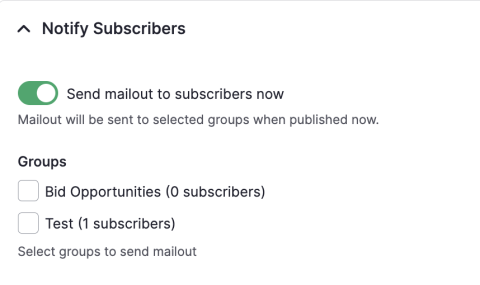
Example of the Notify Subscribers Accordion
Image