This content type can be displayed in a list view on the Contacts page or on the sidebar of a related page.
Adding a Contact
Once logged in, go to the the Drupal Admin toolbar and navigate to Content > Add content > Contact.
Fill in the necessary fields:
- Title: Required This is typically a Department contact instead of an individual staff member's name
- Contact Information:
- Phone: Optional
- Alternative Phone (Add Other Item): Optional
- Email: Optional
- Fax: Optional
- Address: Optional
- Services Provided: Start typing in the services you want to link to, then select
- If you are unable to find the Service you need, you will need to add a new node to the Services Content Type. Refer to that page for editing instructions.
- Body: Optional for additional information
- Once done, click the Publish or Needs Review button at the top of the page.
Editing a Content Type
- To edit a specific node, click on Content in the Drupal toolbar.
- Filter content type dropdown by Contact.
- Click the Filter button.
- Click edit to the right of your specific item in the Operations column or click the Title of your item and then click the Edit button.
- Make your desired edits.
- Once done, click the Publish or Needs Review button at the top of the page
Displaying a Related Contact
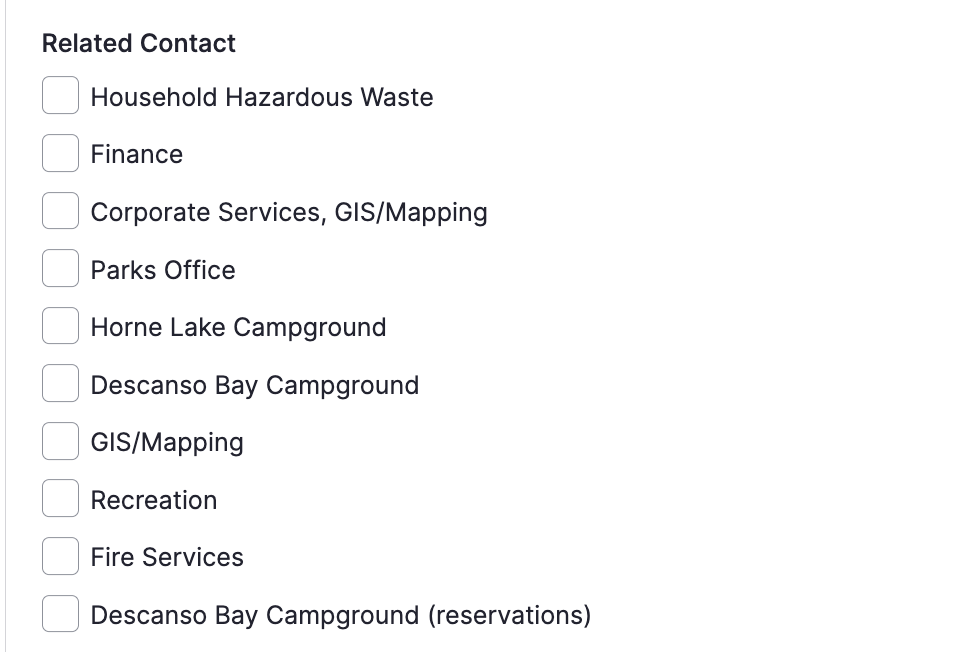
- Contacts can be added to most other content types, including basic pages, using the Related contact checkboxes under the Related Content accordion on the page or node you want this contact to display.
- Once a contact has been added, it will display below the sidebar menu navigation on the front end.
Image